The words in it
A moment after you take a screenshot, PrtScr reads its text. Search for any word you saw, with or without its accents: krakow
finds Kraków
. In the editor, select words right on the picture and copy them.
Free for Windows and macOS · Linux preview
Capture a region, window or screen in a keystroke. Annotate screenshots, edit recordings and find past captures in your own library. Your originals stay untouched. No account or watermark.
Windows 10 (version 2004) or later · macOS 13 or later · Linux x64 in preview · Installation guide
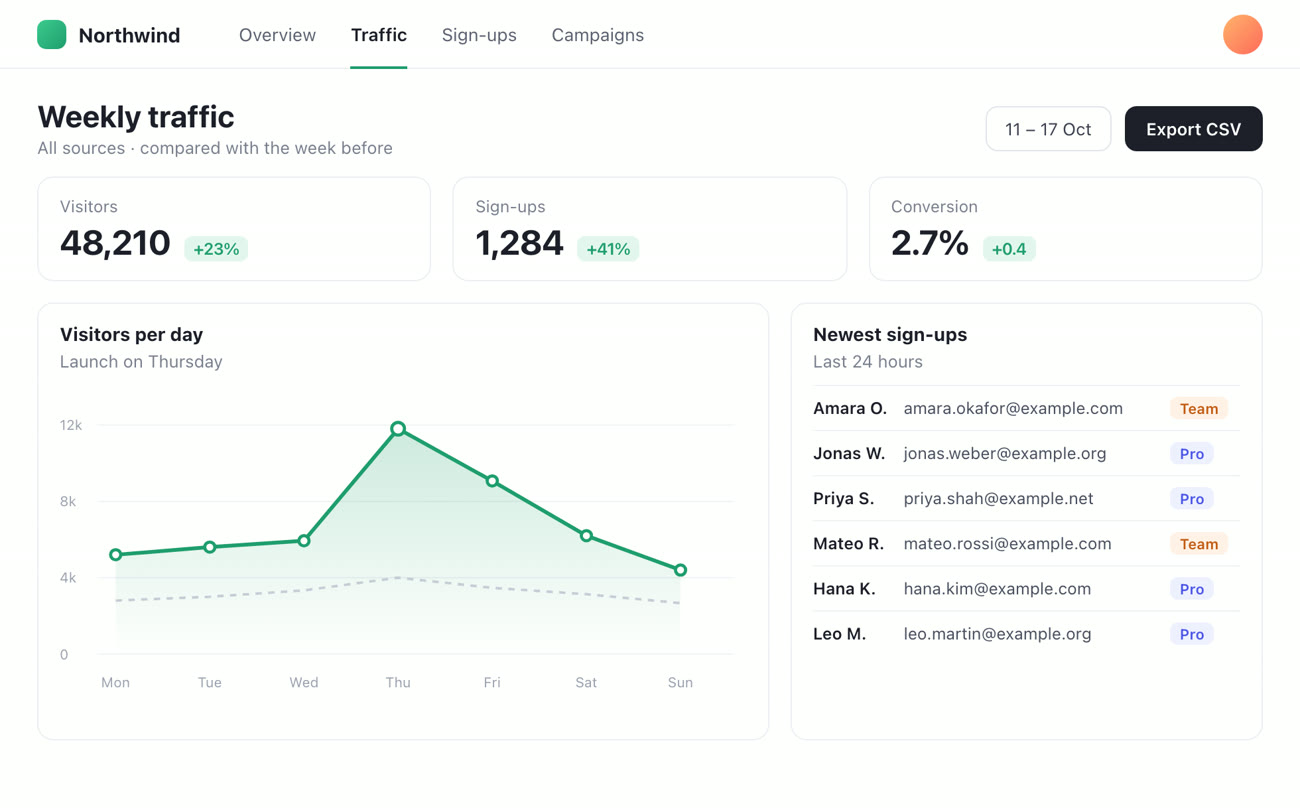
Did Thursday's launch move sign-ups?
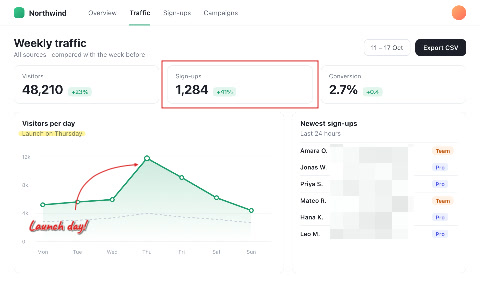
Up 41%. Perfect, thanks!

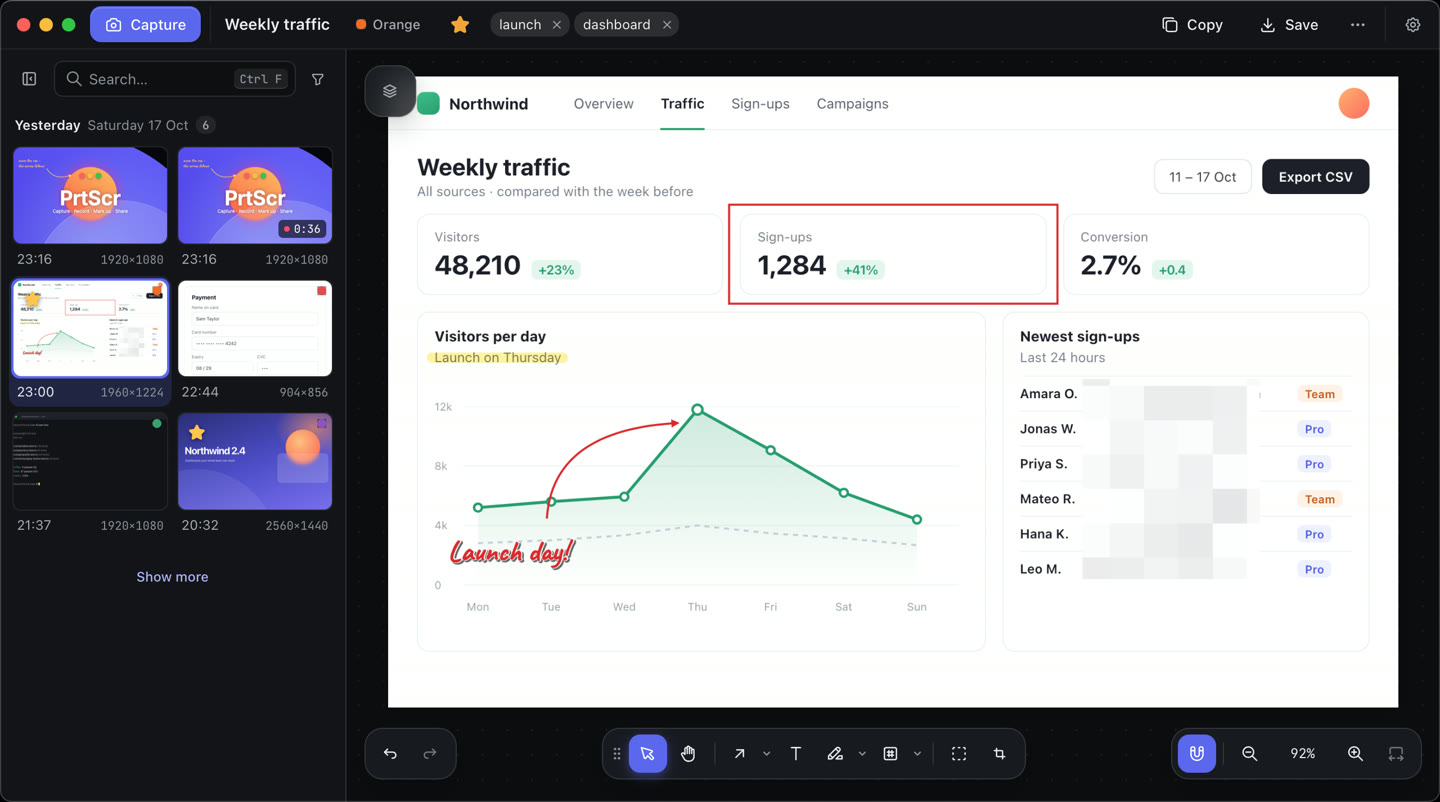
Find it again
Search for words inside a screenshot. With optional local AI search, you can also describe what an image shows, even if it contains no text. Recognition and search run on your computer.
This week
Interactive illustration using fictional captures. Search results are simulated to show how the feature works.
A moment after you take a screenshot, PrtScr reads its text. Search for any word you saw, with or without its accents: krakow
finds Kraków
. In the editor, select words right on the picture and copy them.
Switch on local AI search and travel
finds a boarding pass, a train ticket and a hotel booking, whatever words they use. It knows many languages, so podróż
finds them too.
Pictures are looked at, not only read. Describe a photo with no words in it, dog on a beach
or sunset
, and PrtScr finds it.
Search stays on your computer. Text recognition uses your operating system’s tools. Optional AI search runs Google’s EmbeddingGemma locally, after a one-time model download of about 320 MB. Your captures and search queries are not sent to an AI service. Enable it under Settings → Library when available.
What it does
Explore the interactive examples: drag a button, move a slider or click the video timeline.
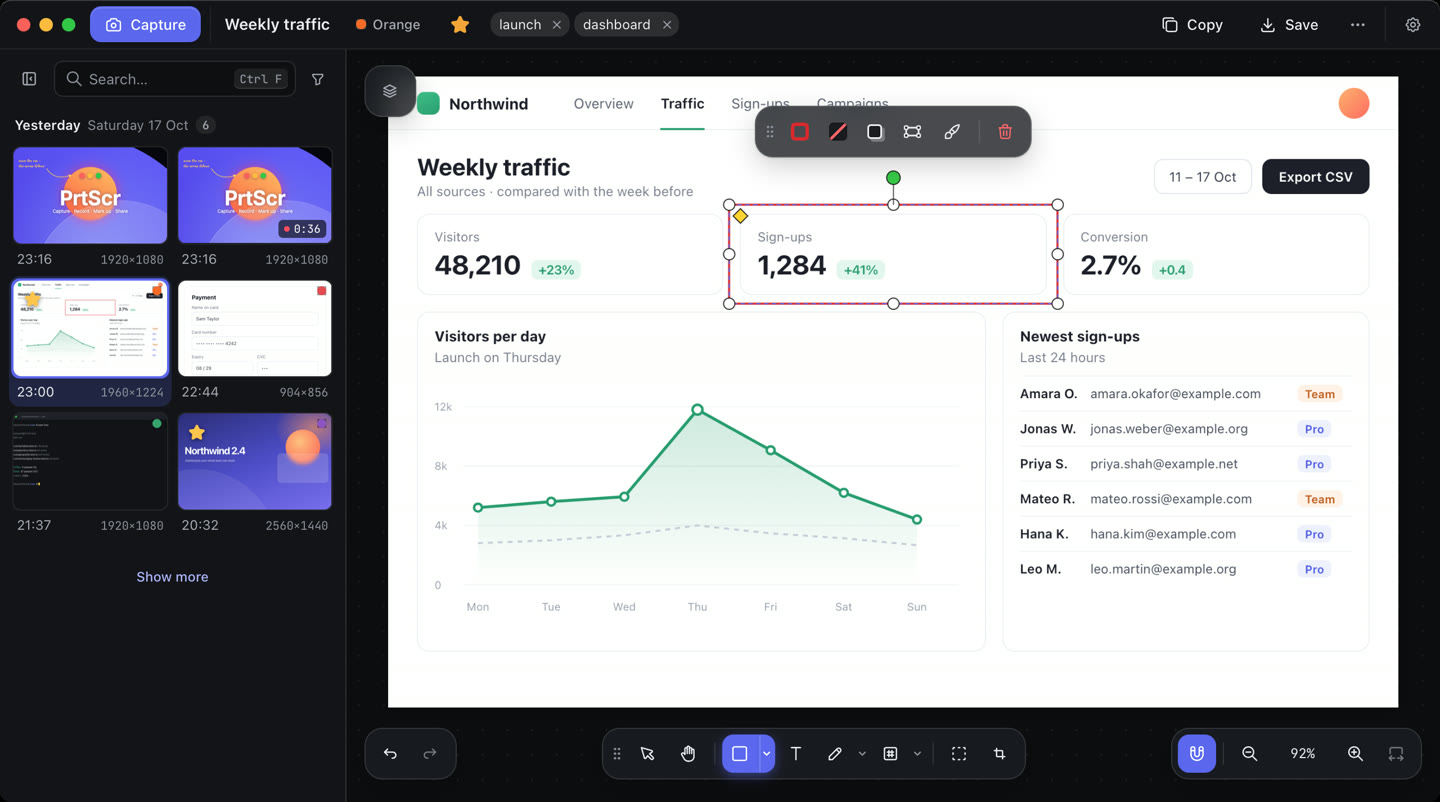
Point at something, then move it. The arrow stays attached and follows, so a layout change never means drawing it again.
Pixelate or blur e-mail addresses, keys and faces before you share. Copies and exports carry only what you can see.
Record any region to MP4. Trim, crop and cut on a multi-track timeline, add fades, crossfades, music and animated titles, then drag the finished clip straight into a chat. Click the timeline to jump around. Recording is on Windows and macOS for now.
Crops, trims and edits never overwrite the original. Adjust a crop later, undo a change or recover a deleted capture within 30 days.
Capture a region that spans two monitors at different scaling, the screen under your pointer, or every screen at once. It comes out sharp, in one piece.
Pick windows, and arrows appear on anything that scrolls: a web page, a document, a long chat. One click scrolls it to the end, captures each part and stitches them into one picture, ready to mark up. Press Esc to stop early and keep what it took. On Windows and macOS.
2Then, only if you choose, sync with
Every capture is saved to the library folder on your own computer first, and works with no connection. Pick places above to see how that folder can back up and sync; this example does not transfer files.
Claude Code, Codex and other agents on your computer can take a screenshot, capture a whole page, find and read your captures, and record the screen, through PrtScr’s local MCP connection. Add it from Settings with one click. PrtScr itself sends nothing anywhere; what you give an agent goes wherever that agent sends it.
A look around
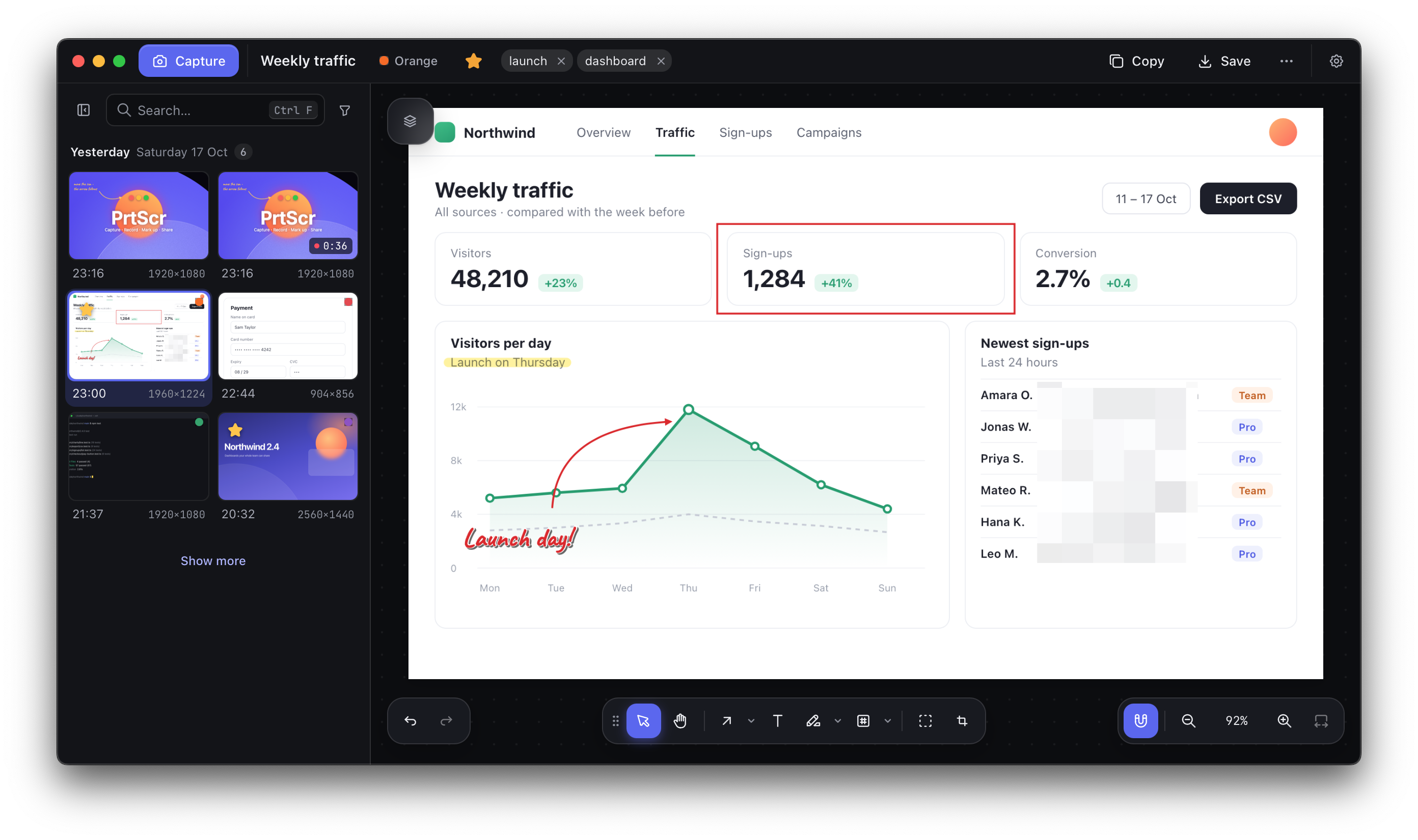
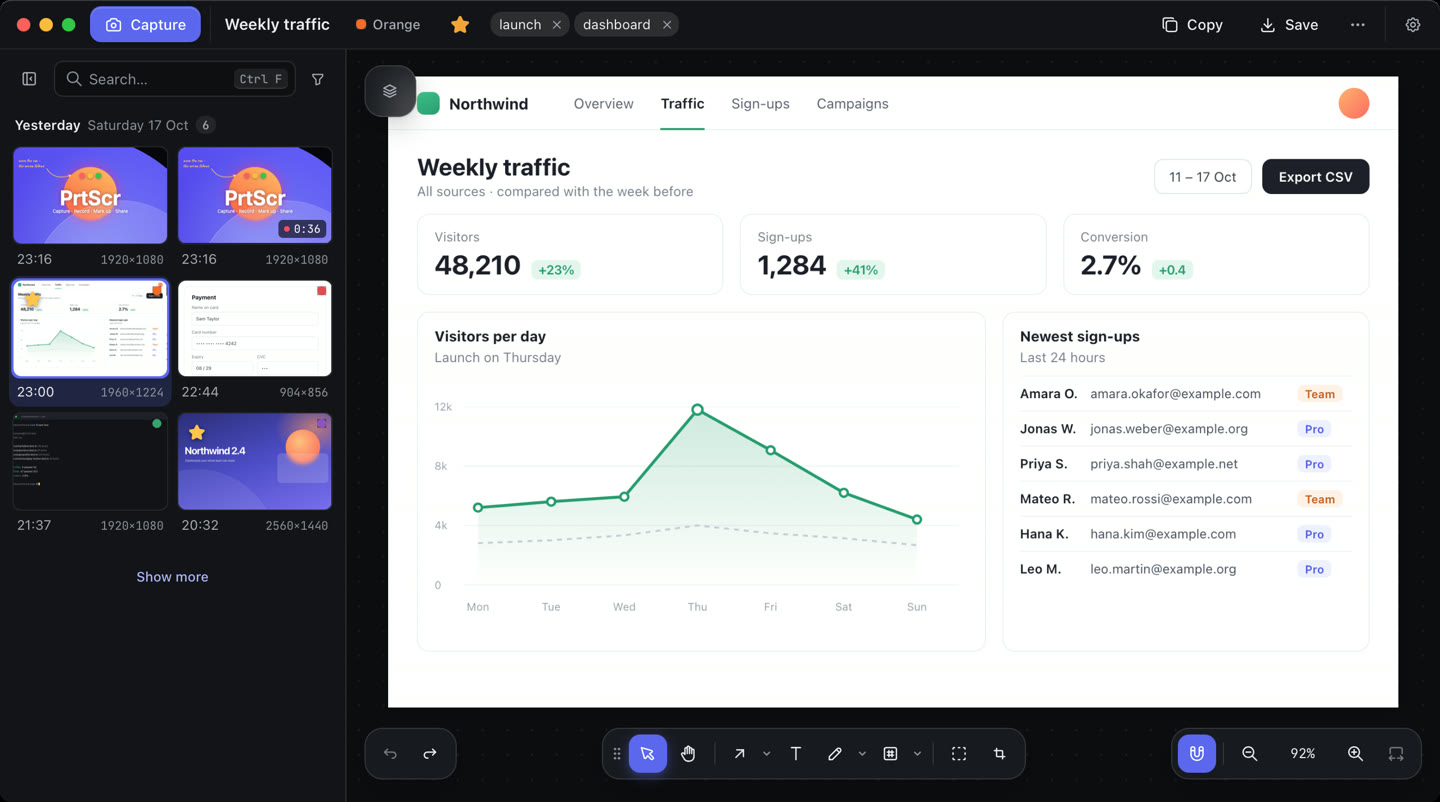
Real screenshots of PrtScr on a Mac. The sample pages, names and figures shown are fictional.
Shortcuts
Taken by another app? PrtScr picks the next free shortcut and tells you which, and Settings changes either.
On Linux the installer sets the keys up on Omarchy and other Hyprland desktops; on GNOME or KDE, give prtscr --capture-region a shortcut.
Install
Download PrtScr and follow the steps below. It runs from the system tray on Windows and Linux, or the menu bar on a Mac.
~/.local/opt/PrtScr, with no administrator rights.bash ~/Downloads/PrtScr-linux-x64.runwl-clipboard (xclip on X11) with your package manager, and on Omarchy makes the screenshot keys PrtScr's.
prtscr --capture-region.Prefer to drag the app to Applications? Every release also has PrtScr-macos-arm64.dmg (Apple silicon) and PrtScr-macos-x64.dmg (Intel). On Linux, bash PrtScr-linux-x64.run --uninstall removes PrtScr and keeps your captures.
Questions
Nothing. There is no account, no subscription and no watermark.
Not by default. Captures are stored in a local library. You can choose to share them or configure backup and sync under Settings → Library and files. Anonymous error reporting is separately opt-in and does not send captured content.
A local folder, a network share, a mounted NFS folder, SFTP, WebDAV, FTP or FTPS, S3-compatible storage, OneDrive, Google Drive or Dropbox, as many as you like. Connect two computers to the same place and captures, edits and deletions travel both ways. Competing edits are kept as copies, never overwritten.
No. It runs an AI model, Google’s EmbeddingGemma, on your own computer, with no account and no internet connection. Switch it on in Settings → Library: the model downloads once, about 320 MB, and PrtScr reads your captures into it while you are away from the computer. Nothing you capture or search for leaves your computer, and switching it off stops it reading anything more.
From the next release, yes. Claude Code, Codex and other agents that run on your computer can take a screenshot, capture a whole page, search and read your captures, change settings and record the screen, through a local MCP connection. Add it under Settings → Library → Coding agents. PrtScr sends nothing itself; what an agent is given goes wherever that agent sends it, which for most is its AI service.
Reading text uses your system’s own recognition, built into Windows and macOS; on Linux it uses tesseract, which the installer offers to add. Settings chooses the language to read, and the editor can read a picture again in another one. Local AI search runs on Windows, on Linux and on Macs with Apple silicon; on an Intel Mac it says it cannot run there.
It downloads the next version in the background and switches to it when you choose Restart to update, when you are away, or the next time it starts. Settings can turn that off, and Check for updates is always there.
Only if you turn on Send anonymous error reports. A report says what failed and where in PrtScr, with names, folders and e-mail addresses taken out, and nothing you captured or copied. Settings lists each one exactly as it was sent.
Yes, as a preview. Screenshots, the library and the editor work on Omarchy and other Hyprland setups, GNOME and KDE, on Wayland or X11, on 64-bit x86. Not there yet: screen recording, picking a window to capture outside Hyprland, and backup locations that need a password or a sign-in.
Open an issue saying what you did and what happened. The log is at %LOCALAPPDATA%\PrtScr\logs\app.log on Windows, ~/Library/Application Support/PrtScr/logs/app.log on a Mac and ~/.local/share/PrtScr/logs/app.log on Linux.
